Make / Effects & techniques
Pixelate an image online
Turn a photo or illustration into a visible grid of color. Upload your image, adjust block size and inspect the result in your browser before finishing in MAKE.
Remix this example ↗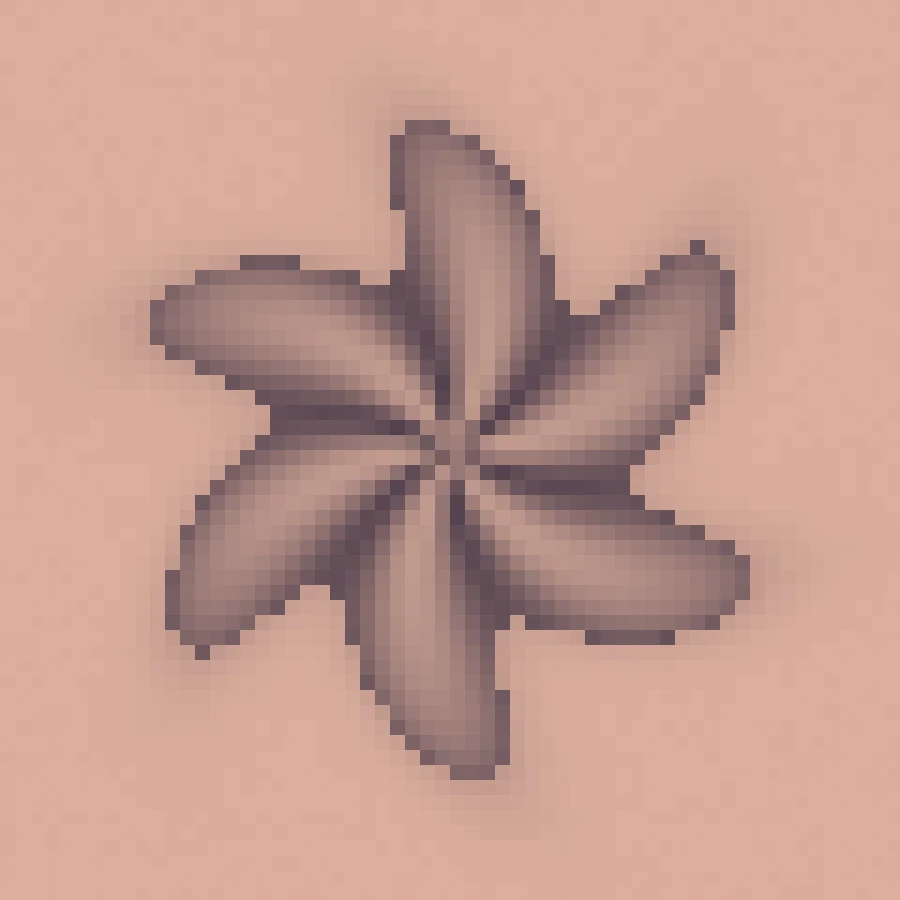
Try it on your image
See pixelate before you commit.
Choose a PNG, JPEG or WebP. The preview runs in your browser; your file stays on this device.
Choose an image or try the sampleMove the slider to see how detail and texture change. The full editor has color, contrast and export controls.
Open the example without uploadingMake this look in three steps
- Choose a PNG, JPEG or WebP in the live preview above.
- Increase Pattern size for larger blocks, or reduce it to retain more detail.
- Open the image in MAKE to refine color and contrast, then export using the editor.
What does pixelation change?
Pixelation samples the image in a grid and fills each block with a representative color. Larger blocks remove fine detail and make the grid a visible part of the design.
Choose a useful block size
Start small for faces or products with identifying details. Try larger blocks for bold silhouettes and abstract backgrounds. Inspect the output at its final viewing size because a thumbnail can make individual blocks disappear.
Keep your colors or restyle them
The starting look preserves source color. In the editor you can also change contrast, use two-color styling or add finishing texture. Pixelation does not create new source detail when enlarged.
Free, Pro and your source files
Processing happens in your browser. Free image exports include 1× and 2× PNG and publish a small preview to the public community gallery. Pro skips gallery publication and adds 3× PNG, SVG and silent WebM video export. Use material you have the rights to upload.
Try it in Make ↗