Adding a feature is easy to celebrate. Finding a place for it is harder. MAKE began as a focused image-effects tool, then gained video, animation, color treatments, background removal, credits and new export choices. Each addition was useful on its own. Together, they made the editor harder to scan.
This is a design account of how we addressed that problem. It is for designers and developers building an image editor dashboard, a creative workspace or any interface where capabilities arrive faster than the navigation can absorb them. We are describing our own decisions and tradeoffs—not claiming measured conversion or usability gains before they have been tested.
Why the editor felt crowded
The old editor asked people to infer a workflow from controls distributed across a top bar, a dense settings panel and smaller entry points. Image and Video existed, but the distinction was easy to miss. Sign in and Upgrade were present without enough visual priority. Background removal worked on the current image, yet its placement made it feel like an unrelated action. The feature was technically integrated but conceptually misplaced.
Every tool had an address. Too few had an obvious reason to be in that address.
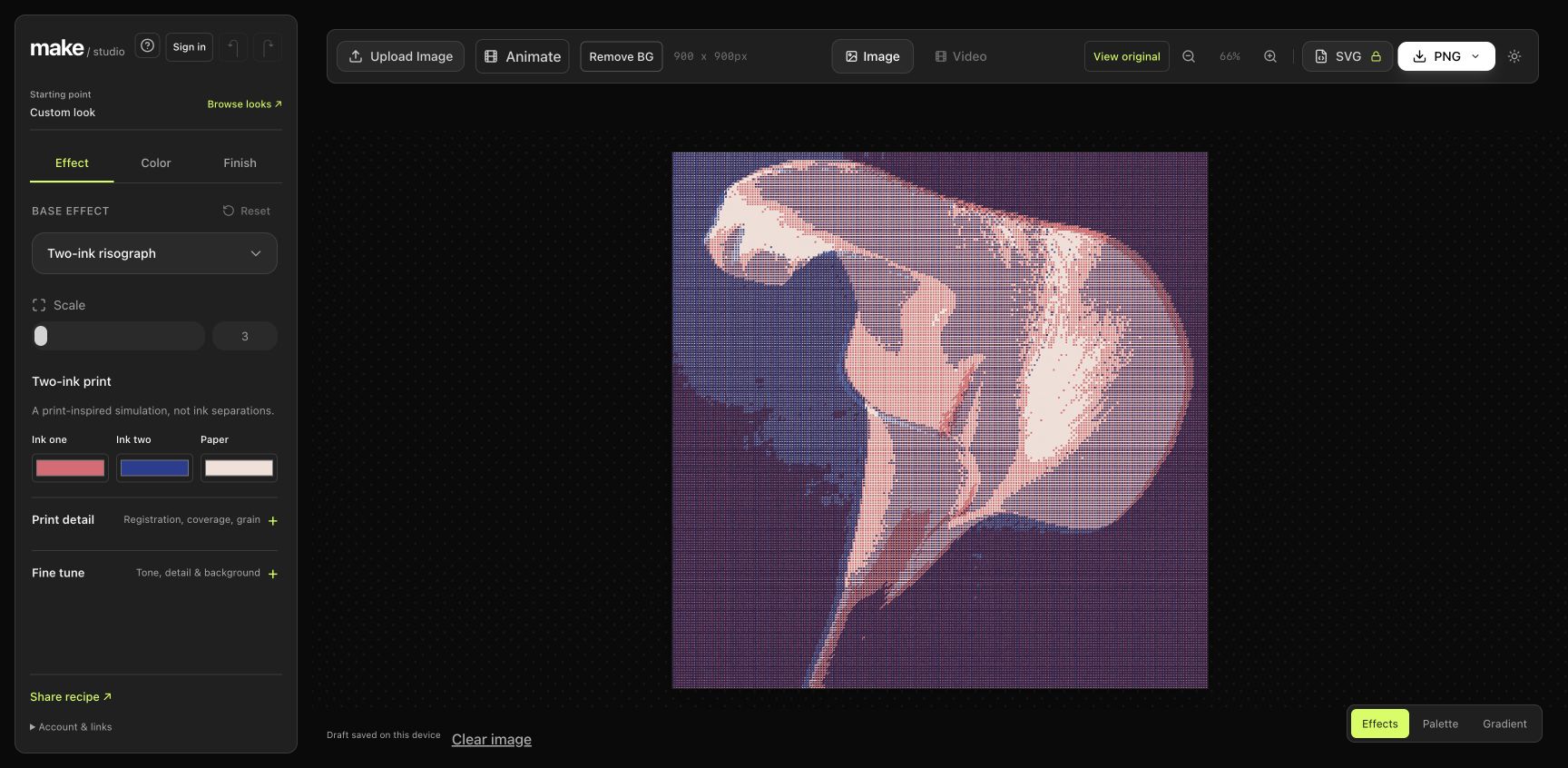
We treated this as an information-architecture problem first. A cosmetic pass could have made individual controls prettier while leaving the same questions unanswered: Where do I begin? Is this an image or a video workflow? Where do I remove a background? What can I export? Where are the settings I use every time?
What we learned from FLORA
We looked at FLORA’s public canvas presentation as one benchmark, because it explains a broad creative tool through its building blocks and workflows. Its canvas documentation also describes connecting text, image and video blocks. FLORA’s node-based model is different from MAKE’s effects editor, so copying its interface would have solved the wrong problem. The useful principle was to make the relationship between an input, an action and its result legible.
For MAKE, that meant making the current image and its treatments feel connected, while recognizing that Image, Video and animation are different jobs. Nielsen Norman Group’s guidance for complex applications argues for reducing apparent clutter without reducing capability. We took that literally: quieter surrounding chrome and clearer grouping, while keeping the important sliders visible.
Show the mode
Use plain labels for Image and Video, and show where animation fits.
Keep context
Prepare, style and export the same source without a detour.
Keep control
Preserve direct access to the sliders creators use to shape a result.
A floating workbench, not another menu
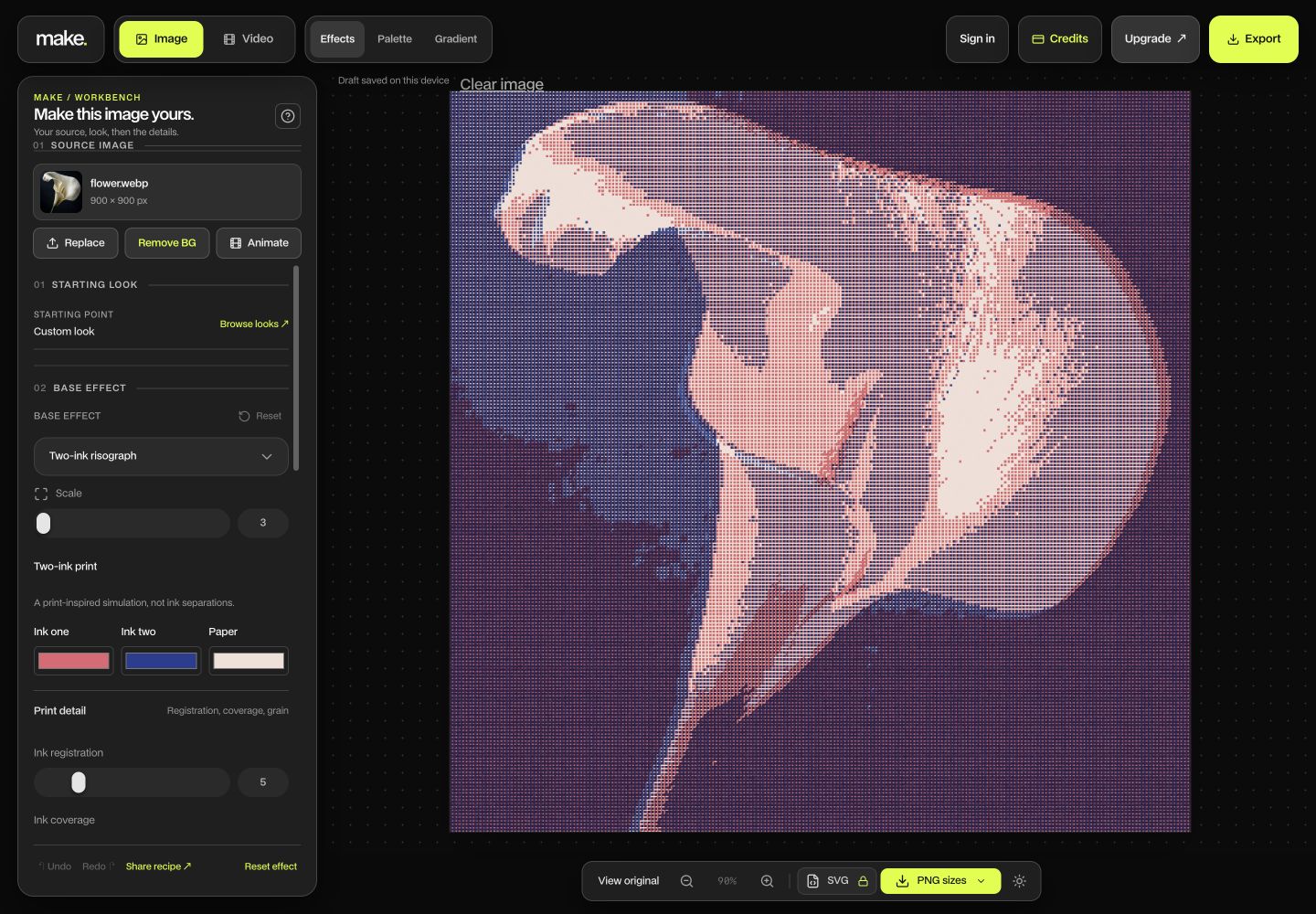
The new layout keeps a large central canvas and a compact floating workbench to its left. The workbench starts with the current source, then moves through starting looks, the base effect and the image controls. Shape and tone, color and finishing settings remain open. We wanted less visual weight around the artwork without making experienced users reopen panels for every adjustment.
- Mode and account stay visible. The header has labeled Image and Video entry points, plus Sign in or account, Credits, Upgrade and Export. These are not hidden in a product switcher.
- Source actions stay together. The current image, Replace, Remove BG and Animate share one source area. Removing a background is a way to prepare this image for its effect, not a journey to a separate tool.
- Looks lead into direct controls. Starting looks and the base effect provide a quick direction; shape, tone, color and finish settings remain ready for hands-on editing, with the existing rounded sliders.
- The canvas owns the center. Compare, zoom and export controls sit close to the preview, while the surrounding surfaces use neutral charcoal so the artwork remains the most colorful thing on screen.
This distinction matters especially for video. Applying a texture to moving footage is different from animating a still image. We now describe those paths in user terms instead of letting a compact switcher carry the entire explanation.
The small decisions that matter
Account and pricing are part of the workspace. Sign in, Credits and Upgrade are visible where users make and export work. Their labels should not disappear into an icon or utility menu, especially when a paid action is nearby.
Remove BG lives near the source. A transparent background is preparation for an effect, not a new creative destination. The action should state its credit cost before processing and return the result to the same edit. The original needs to remain recoverable.
Export is a first-class action. People should not have to finish an image and then hunt for the way out. Keeping Export stable also gives the editor a clear end point.
Labels beat decorative icons. Icons still help scan, but “Image,” “Video,” “Remove BG” and “Export” need words. Ambiguous pictograms are a poor exchange for a few saved pixels.
Less clutter does not mean fewer visible controls. We considered hiding the detailed parameters behind progressive panels, but that would add clicks to a core task: tuning the image while watching the result. GitLab’s design guidance says primary actions need visible priority. In MAKE, many sliders are primary tools, so we kept them expanded and made their grouping and surfaces quieter instead.
Keep the behavior while moving the interface.
MAKE's effect controls have undo and redo, the image draft can be recovered locally, and the preview renders at a smaller size before full-resolution export. The new layout must preserve those separate paths. It also needs keyboard-visible focus, clear control labels and a mobile view that does not cover the canvas.
What we will measure next
A redesign is a hypothesis until people use it. We will look at whether new users can find Image and Video without guidance, whether they locate background removal while editing an image, and whether sign-in and upgrade paths are understood before an export limit interrupts them. We also want to observe source loads, successful renders, completed exports, mobile overflow and keyboard use.
Those measures have different meanings. A faster first effect may indicate better wayfinding; it does not prove the final artwork is better. A higher upgrade click rate may reflect clearer placement; it does not prove the offer is right. We will compare consistent acquisition cohorts and pair event data with short task-based sessions, watching for controls people repeatedly search for.
For designers and developers
Questions worth asking
How do you reduce clutter in an image editor without removing features?
Group controls by the user’s task, make the canvas visually dominant and quiet the surrounding chrome. Keep frequently adjusted parameters visible even if hiding them would make a screenshot look simpler.
Where should background removal live in an image editor?
Near the current source image, before effects that depend on its silhouette or transparency. If processing is paid, disclose the credit cost before starting and return the result to the same editing context.
Should image and video use the same editor dashboard?
They can share a visual system, but the entry points and controls need clear labels. A video clip, an animated still and a static image have different inputs, previews and exports.
What makes an editor dashboard easier to learn?
Explicit modes, a stable primary action, clear control names and a visible relationship between source, effect and output. Validate these decisions with real tasks rather than relying on visual preference alone.
See the editor
in motion.
Bring an image, try a look and tell us where the flow can still improve.
Open MAKE editor ↗